A great photo doesn’t just start behind the camera—it also starts with a smart workflow. In this article, I’ll show you step by step how I import, organize, edit, and export my photos in Lightroom Classic. With practical tips, useful settings, and an efficient workflow, you’ll save time and get even more out of every photoshoot.
Lightroom Classic – from importing to exporting: this is how I build my workflow
Lightroom Classic has been the foundation of my photo editing for years. Whether I come home from a portrait shoot, an event, or a nature walk: almost everything starts in Lightroom Classic. And honestly? That gives me peace of mind.
When I first started photography, Lightroom Classic felt quite messy to me. Sliders, options, settings and menus everywhere. I felt like I had to understand and use everything at once. But over time, I discovered that Lightroom Classic actually works really nicely once you build a fixed workflow.
And that is exactly what this blog is about.
Not extreme edits or complicated techniques, but a practical workflow you can use again and again. From importing your photos to exporting them properly for social media, your website or print.
Because no matter how good your photo is: if your workflow is messy, you will eventually lose overview. A good structure saves time, prevents hassle and helps you keep enjoying photography.
In this blog, I will take you step by step through my own way of working in Lightroom Classic. Without unnecessary technical fuss.
Lightroom vs Lightroom Classic – what is the difference?
Adobe sometimes makes this a little confusing, because there are basically two versions of Lightroom: Lightroom and Lightroom Classic.
In this blog, I am talking entirely about Lightroom Classic. This is the more extensive desktop version that many photographers use for a complete workflow: importing, selecting, editing and exporting large amounts of photos.
The regular version of Lightroom works more from the cloud and is designed more simply for use across multiple devices such as laptops, tablets and phones. For many hobby users that works perfectly fine, but personally I find Lightroom Classic much more powerful and organized when you are serious about photography.
Especially features like extensive folder structures, import workflows, export presets and catalog management make Lightroom Classic the best choice for me.
Shooting in RAW
Before you can really work comfortably in Lightroom Classic, there is one thing I would recommend to every photographer: shoot in RAW.
RAW files contain much more information than a standard JPG file. That gives you much more room during editing to recover shadows, correct highlights, adjust colors and improve white balance without quality quickly falling apart.
That is exactly why Lightroom Classic works best in combination with RAW photos. Of course, you can also edit JPG files, but the possibilities are much more limited. Especially when a photo is slightly too dark, too bright or off in color, you will quickly notice the difference.
If you are serious about Lightroom, I would personally almost always choose RAW.
I have already written a more detailed blog about the difference between RAW and JPG, where I explain everything calmly with examples:
A good workflow always starts for me with properly importing my photos. That may not sound very exciting, but believe me: this is where you save a lot of time later.
I still often see people dropping photos onto their desktop or keeping everything in one big folder. That may work for a while, but once you have thousands of photos, you completely lose overview.
Insert your memory card
I always start by inserting my memory card into the computer or card reader. Lightroom Classic usually opens automatically for me, but otherwise I start the program manually.
Go to Library
At the top of Lightroom Classic, I go to the Library module. This is where everything around organizing and selecting happens.
At the bottom left, I then click Import.
Choose the source
On the left, I choose the source of the photos. In most cases, that is my memory card.
Choose the destination
On the right, I choose where the photos should be stored. Personally, I almost always work with a fixed folder structure.
2026-08-12
2026-08-14
2026-08-15
It sounds simple, but later you will be grateful for it. You can easily search by date or event.
Renaming files
Sometimes I rename files directly during import. Especially with larger shoots or assignments, that is useful.
💡 Tip: Use clear file names with the date or shoot name so you can find things faster later.
Smart Previews
Lightroom Classic gives you the option to create Smart Previews. This can be useful when you want to edit on a laptop while you are on the road without having the original files connected, for example on an external hard drive.
If you mainly work locally at home on one system, you do not always need to turn this on.
Metadata and copyright
I almost always fill in my name and copyright information during import. It literally takes a few seconds and makes sure your details are neatly stored in the photos.
Add keywords
Keywords may seem unnecessary at first, but they become very useful once you have a lot of photos.
Portrait
Event
Spring
Flowers
Emmen
Sunset
Later, this helps you find photos much faster.
Applying a basic preset during import
This might be one of my favorite parts of Lightroom Classic.
An “import preset” or develop setting makes sure every imported photo already gets a calm basic edit. This saves a huge amount of time.
Important to know: this is not a final edit. It is only a safe starting point.
I use a preset like this for example for:
Lens corrections
Clarity
A small amount of contrast
Light sharpening
Subtle noise reduction
A neutral basic look
This is how I create a basic preset
I first open an already imported photo in the Develop module.
There I set up a number of safe basic settings:
Profile: Adobe Color or Camera Matching profile
Enable lens corrections
A small amount of contrast
Light sharpening
Subtle noise reduction
Then I go to Presets in the menu on the left.
I click the plus icon and choose Create Preset.
Then I give the preset a clear name such as:
Basic import – natural
Basic import – portrait
Basic import – outdoor light
After that, I only check the settings that are safe for all photos.
Download my basic import preset for Lightroom Classic for free below. You can easily import it by clicking “+” under “Presets” → Import Preset
💡 Tip: Never make an import preset too aggressive. Avoid heavy color changes, extreme contrast or a fixed white balance.
Apply the preset during import
When I import new photos after that, I go to the right side:
Apply During Import → Develop Settings → Choose the preset you created, or if you imported my preset: BASIS IMPORT MARK
After that, I quickly check metadata and keywords and click Import.
And honestly? This small part of the workflow alone saves me a lot of time.
Selecting and cleaning up
After importing, I first calmly go through my photos.
Not editing right away. First selecting.
Out-of-focus photos, duplicates or failed moments are removed.
That may sound harsh, but in the end it is much nicer to work with a strong selection than with hundreds of almost identical photos.
💡 Tip: When you delete a photo, you get two options: “Remove from Lightroom” or “Delete from Disk”. I usually use the last option, because the original file is then also removed from the hard drive.
Using flags
P = Pick
X = Reject
U = Remove flag
I use this constantly while selecting. With flags I mark which photo I want to use. After selecting, you can easily filter on photos with a “Flag”.
I also sometimes work with stars:
1 star = possibly usable
3 stars = good photo
5 stars = favorite or portfolio
I mainly use color labels for larger assignments.
Editing in Lightroom Classic
Now the creative part begins.
And even here, I try to keep working calmly.
I see many beginners adjust everything at once. Contrast up, saturation up, color saturation up… and before you know it, the photo looks unnatural.
That is why I almost always work step by step and photo by photo.
Tip 1: Start with the right crop
Before I touch color or light, I first look at the composition.
Is the horizon straight?
Are there distracting edges?
Can the composition be stronger?
Sometimes a small crop already makes a huge difference.
I often use a 4x5 / 8x10 ratio when cropping a vertical photo. I like this crop better and it also makes the photo fully visible on social media.
💡 Tip: Look carefully at the edges of your photo. That is often where distracting elements appear.
Tip 2: Check the white balance
An incorrect white balance stands out faster than many people think. Is the photo too yellow? Too blue? Or maybe even a bit green?
The eyedropper in Lightroom can help you choose a neutral point.
You can find the white balance eyedropper on the right in the Develop module, at the very top near Temperature and Tint.
Click the eyedropper and then move your mouse over the photo. Lightroom shows live, in the top left corner, how the white balance changes. Then click on something in the photo that should be neutral white or gray, such as a white shirt, gray wall, paper or a cloud.
Lightroom then tries to automatically calculate the right color temperature and tint. This is often a quick way to make a photo look more natural when it has become too yellow, blue or green.
💡 Tip: Use the eyedropper mainly as a starting point. Always check afterward whether the mood of the photo still feels right. A sunset may stay warm and an evening photo does not have to be completely neutral.
The histogram may seem a little complicated at first, but actually it is just a useful graph that shows how the light in your photo is distributed.
The left side of the histogram contains the dark parts of the photo, such as shadows and blacks. The right side contains the bright parts and highlights. The middle contains the midtones.
A histogram does not always have to sit perfectly in the middle. A dark evening photo will have more information on the left, while a bright snow photo will shift more to the right. That is completely fine.
What I mainly look for is clipping. This means parts of the photo become completely black or completely white, causing detail to be lost.
Too far left = loss of detail in shadows
Too far right = blown-out highlights
The histogram is therefore very useful for judging your exposure, often even better than just looking at your screen by eye.
💡 Tip: Use the histogram as a tool, not as a strict rule. In the end, the most important thing is still how your photo looks and what mood you want to create.
Tip 4: Use highlights and shadows
For me, these may be the most important sliders in Lightroom.
Lower highlights for skies or bright areas
Raise shadows for detail in dark areas
But here too: keep it subtle.
If you push shadows too far, you can quickly get that overdone HDR look.
Tip 5: Build contrast calmly
Contrast gives a photo strength, but too much contrast quickly makes an image harsh.
I often use a combination of:
Contrast
Whites
Blacks
The black point determines how deep the dark areas become. The white point determines how bright the light areas can be.
By working with this calmly, you preserve detail and atmosphere.
Tip 6: Keep colors natural
This is one that many people overdo.
Especially saturation.
Personally, I much prefer using Vibrance rather than Saturation.
Vibrance works more subtly and protects skin tones and skies better.
💡 Tip: Look away from your screen for a moment and then come back. You will notice more quickly when colors have become too intense. You can also press Y to compare the original with the edited version.
Tip 7: Use masks
Masks are incredibly powerful in Lightroom Classic nowadays.
I often use:
Select Subject or Person
Select Sky
Radial Gradient
Linear Gradient
With masks, you can make small local adjustments without affecting the entire photo.
But again: do not overdo it.
Tip 8: Let your subject stand out subtly
Sometimes I give a face or subject just a little more attention.
A little more light
A little bit of texture
Subtle clarity
Especially with portraits, this works beautifully when you keep it very calm.
Tip 9: Lens corrections and transform
One of the first things I almost always do while editing is enable lens corrections. You can find this option on the right in the Develop module under Lens Corrections.
Lightroom often automatically recognizes which lens was used and then corrects small lens issues. Think of:
Dark corners, also called vignetting
Slight lens distortion
Barrel distortion with wide-angle lenses
This often makes a photo look just a bit cleaner and more natural right away.
I also almost always check:
“Remove Chromatic Aberration”. This feature is also sometimes called “Remove Color Fringing”.
Chromatic aberration sounds complicated, but it is basically small purple, green or blue edges that can appear along high-contrast parts of a photo. For example:
Tree branches against a bright sky
Buildings against sunlight
Metal edges
White clothing in bright light.
Lightroom can often remove these distracting edges automatically.
If you photograph many buildings or city scenes, the transform tool is also very useful. You can find it under Transform.
With this, you can correct crooked lines caused by photographing upward or downward. Think of:
Buildings that seem to fall backward
Crooked walls
Distortion in wide-angle photos.
With options like:
Auto
Vertical
Full
…Lightroom can automatically straighten those lines.
💡 Tip: Do not overdo transform corrections. If you correct lines too extremely, the photo can start to look unnatural or you may lose too much image around the edges because of cropping.
Tip 10: Sharpening and noise reduction
Sharpening is usually one of the last steps in my editing process. Almost every RAW photo can use a little bit of sharpening, but here too: subtle usually works better.
Too much sharpening quickly creates unnatural hard edges, graininess or a “crispy” look. Especially skin, skies and soft backgrounds can quickly start to look unnatural when you go too far.
You can find sharpening settings on the right in the Develop module under Detail.
There you will see, among other things:
Amount
Radius
Detail
Masking
For a calm basic edit, I usually keep these settings quite subtle.
A very useful feature here is the Masking slider. While moving this slider, hold Alt on Windows or Option on Mac. Lightroom will show in black and white which parts of the photo are actually being sharpened.
White areas are sharpened
Black areas are left untouched
That is very useful, because most of the time you do not want skies, soft backgrounds, skin or bokeh to be sharpened extra.
This way, you can direct the sharpening mainly toward important details such as:
Eyes
Hair
Feathers
Buildings
Textures
I mainly use noise reduction for photos taken at higher ISO values. Think of:
Evening photography
Indoor locations
Concerts
Events
Wildlife in low light
Too much noise reduction quickly makes a photo soft and “plastic-like”. That is why I always try to find a balance between less noise and enough detail.
💡 Tip: Always zoom in to 100% when sharpening and reducing noise. At smaller sizes a photo may look fine, while at full size you can really see what sharpening or noise reduction is doing.
Checking before and after
While editing, I regularly press the \ or Y key. That immediately shows the difference between before and after.
This helps a lot to avoid going too far with an edit.
I also try to regularly step away from the screen for a moment.
Walk away. Grab a cup of coffee ☕️.
Then you often suddenly notice whether colors have become too harsh or skin tones look unnatural.
Also check your photo both small and large.
Do skin tones still look natural?
Does the sky still look realistic?
Are the edges clean?
Saving and exporting
If you are used to working with Photoshop, Lightroom Classic may feel a little strange at first. You do not keep clicking “Save” or “Save As”. Lightroom works completely differently. The nice thing about that is that your original RAW file always remains intact. All edits you make are basically stored as adjustments, while the original file remains unchanged.
Everything you adjust in Lightroom, such as exposure, colors, contrast, crops or masks, is remembered by Lightroom in the catalog. The program does not directly change your original RAW file. That file always stays safe and untouched. Personally, I think that is one of the best things about Lightroom Classic, because you can always return to the original if you want to.
Only when you export does Lightroom actually create a new version of your photo. That file is then used for social media, your website, print, clients, email or your portfolio.
Exporting for social media
For Instagram, Facebook, websites and online use, I almost always export as JPEG. That file type is light, fast and supported almost everywhere.
Many photographers think Adobe RGB or eRGB is automatically better, but for social media or websites, sRGB is almost always the safest choice in practice.
Why? Because browsers, phones, tablets, Instagram, Facebook and websites display sRGB most consistently.
If you use Adobe RGB online, colors may appear flatter, duller or less saturated on some devices.
Image size
For social media, you usually do not need to export huge files. That only makes uploading heavier, and platforms will eventually resize the photo again anyway.
I often use:
2048 px long edge
or 2500 px long edge
This usually gives a nice balance between quality, file size and speed.
If you want to keep maximum quality for a portfolio or larger display on a website, you can of course export larger.
💡 Tip: Do not focus too much on ppi or dpi for online use. For social media, the actual pixel dimensions are what matter most.
Fortunately, Lightroom Classic does not have to be complicated at all. At first it may seem like a lot, but once you build a fixed workflow, you notice how much peace and overview it actually gives. For me, that may be the biggest advantage of Lightroom: everything is in one place. From importing and selecting to editing and exporting.
My biggest advice? Keep it simple. You do not have to understand every slider perfectly right away. Start with a calm basic edit, learn step by step what settings do and above all try to develop your own style. Often, subtle adjustments are ultimately much stronger than extremely edited photos.
And do not forget exporting. A beautiful edit can still look completely different online if you use the wrong export settings. That is why exporting is just as much part of your workflow as photographing and editing itself.
I hope this workflow helps you get more structure, speed and especially more enjoyment out of Lightroom Classic. And maybe even more importantly: that you have more time left to simply enjoy photography.
Do you have useful Lightroom tips yourself or are you running into something? Let me know 😄
10 extra Lightroom Classic tips that help me every day
Work with a fixed workflow. Try to import, select, edit and export every shoot in the same way. That gives peace, overview and prevents mistakes.
Do not use too many presets at once. A preset can be a nice starting point, but always keep looking at light, colors and mood yourself. Every photo is different.
Learn to understand the histogram. The histogram may seem complicated at first, but it helps a lot with judging exposure and detail in highlights and shadows.
Zoom out regularly while editing. At 100% zoom a photo may look perfect, while the overall image becomes too harsh or unnatural. So also look at your photo full screen regularly.
Do not make every photo extremely sharp. Especially with portraits, a softer and more natural look is often much nicer than over-sharpening. Create masks for parts of the photo and sharpen those; this often gives a nicer effect.
Use masks subtly. Local adjustments are incredibly powerful, but if you use them too strongly, a photo quickly starts to look fake.
Delete bad photos sooner. Not everything has to be kept. A strong selection is ultimately much nicer to work with than thousands of almost identical images.
Calibrate your screen if you are serious about editing. An incorrectly set screen can cause colors and brightness to look completely different on other devices or in print.
Create export presets for recurring tasks. This saves a lot of time when you often export for Instagram, websites, clients or print.
Above all, keep photographing. It is easy to spend hours with sliders and settings, but in the end you still learn photography the most by simply continuing to shoot a lot.
Smart shortcuts in Lightroom Classic
When you start working with Lightroom Classic more often, shortcuts can save you a lot of time. You spend less time searching through menus and can move through your photos much more smoothly. I personally use shortcuts a lot while selecting, comparing and editing photos.
Selecting and rating
P = flag photo
X = reject photo
U = remove flag
1 to 5 = add star rating
0 = remove star rating
6 to 9 = add color label
Viewing and comparing
G = grid view
E = loupe view
C = compare view
N = survey view
F = full screen
L = dim the lights around the photo
Editing
D = go to the Develop module
R = crop tool
Q = healing / spot removal tool
M = linear gradient
Shift + M = radial gradient
K = adjustment brush
Before and after
\ = before / after view
Y = show before and after side by side
Useful workflow shortcuts
Tab = hide or show side panels
Shift + Tab = hide or show all panels
Cmd + Z = undo on Mac
Ctrl + Z = undo on Windows
Cmd + Shift + E = export on Mac
Ctrl + Shift + E = export on Windows
💡 Tip: Don’t try to memorize all shortcuts at once. Start with P, X, D, R and \. With just these, your workflow already becomes much faster.
Comments
0 comments
Share what stood out to you, what you learned, or what you would try yourself.
Get inspired by my latest blog posts about photography, macro, nature, techniques and more. Discover the stories behind the images, practical tips to improve your own photos, and personal experiences from the field.
11May
Blog
Working Smart in Lightroom Classic
17 min reading time
A great photo doesn’t just start behind the camera—it also starts with a smart workflow. In this article, I’ll show you step by step how I import, organize, edit, and export my photos in Lightroom Classic. With practical tips, useful settings, and an efficient workflow, you’ll save time and get even more out of every photoshoot.
05,0
17Jan
Blog
Portrait / Studio Photography
8 min reading time
How do you create a professional portrait with just one light source? I’ll show you step by step how I approach this studio shoot
25,0
24Oct
Blog
Color and Light: Playing with Atmosphere
6 min reading time
Let light and color tell your story. Discover how to create atmosphere in every photo — from forest light to soft autumn tones.
04,8
05Oct
Blog
Mastering Sharpness and Focus
4 min reading time
Sharpness starts with control. Discover how to truly master focus and capture images that are razor-sharp down to the finest detail.
05,0
01Sep
Blog
The Power of Manual Mode
5 min reading time
Manual Mode may seem intimidating, but it actually gives you control. In this blog, learn how and get tips to instantly improve your photography.


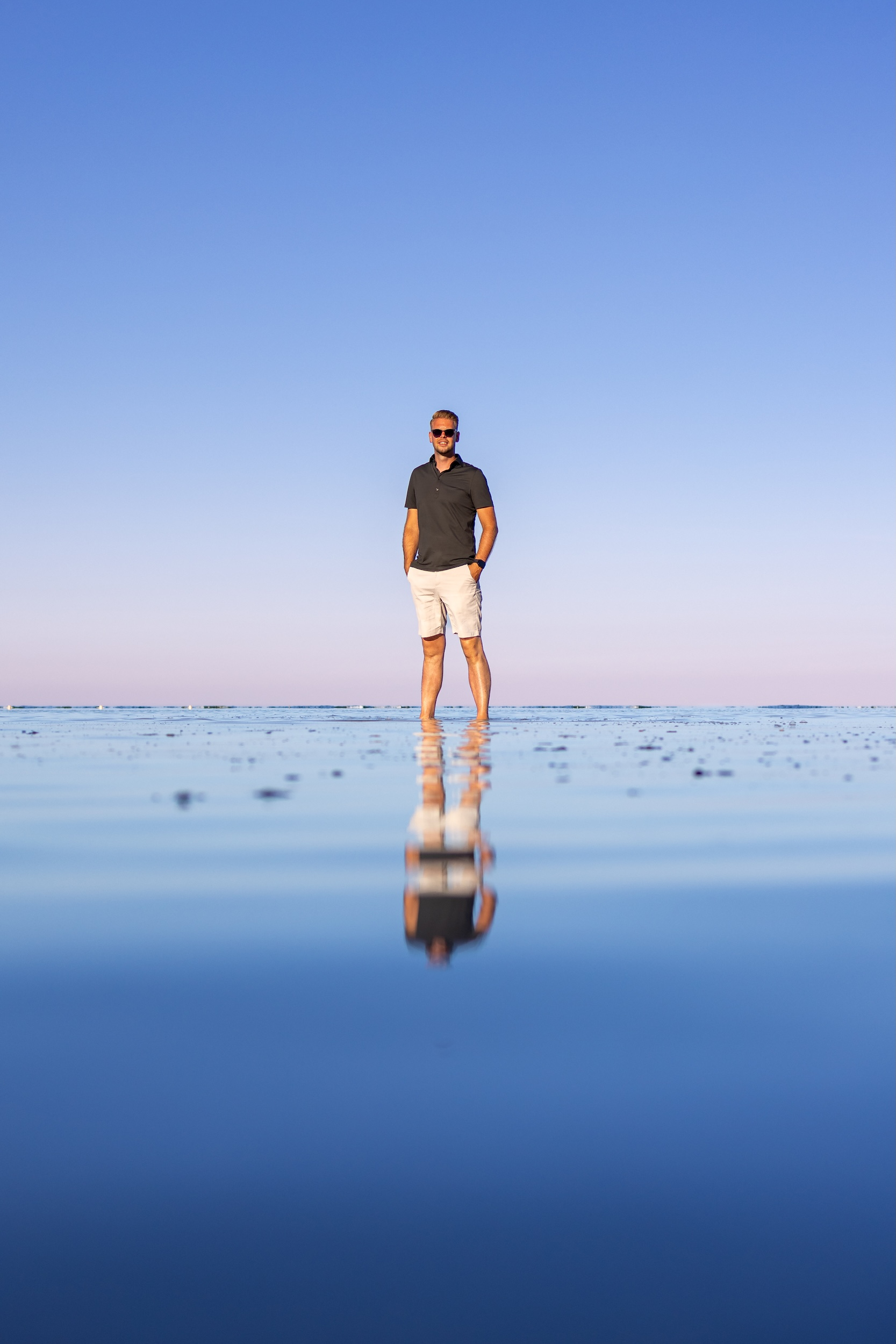
 Author: Mark Mooibroek





Comments
0 comments
Share what stood out to you, what you learned, or what you would try yourself.
Be the first to comment! 👍